Performing-Arts School Scenario · Microsoft 365 · Power Automate

Project
Arabesque

A self-directed Microsoft 365 automation case study for international student onboarding and offboarding, built with SharePoint, Forms, Power Automate, and Outlook.

Power Automate SharePoint Online Microsoft Forms Office 365 Outlook Low-Code Integration IT Asset Management
3
SharePoint systems built
2
Automated cloud flows
4
Email templates tested
0
New vendor platforms

A world-class institution
deserves invisible IT.

Project Arabesque is based on a performing-arts school scenario with international boarding students, academic staff, residence coordination, and a small IT team. Each student needs a Microsoft 365 account, a configured device assignment record, network access coordination, and clear onboarding communication.

The Scale Problem

300+ staff, students, visiting choreographers, and international partners — all supported by a small IT team. Manual onboarding doesn't scale without breaking something important.

The Stakes Problem

This isn't a tech company. When something breaks the morning of a performance, or a student arrives and their account isn't ready, it matters in a way that a missed meeting notification never does.

The Tooling Problem

The solution shouldn't require a $40,000 enterprise platform or a vendor contract when the workflow can be covered with existing Microsoft 365 services.

The International Variable

Students arrive from Japan, Brazil, South Korea, the UK — different time zones, language needs, arrival dates. The onboarding process needs to reduce manual coordination and keep the IT team working from one source of truth.

The Solution

Three systems.
Two flows. Reduced manual coordination.

Project Arabesque is a Microsoft 365 IT Operations Hub built around SharePoint Online, Microsoft Forms, Power Automate, and Office 365 Outlook. It demonstrates intake, tracking, email notifications, and device assignment records without adding a separate ticketing or onboarding platform.

Evidence Status

SharePoint lists, intake form, cloud flows, and email notifications are shown with sample workflow data. This is a portfolio case study, not a production deployment claim.

Validation Boundary

Device assignment is tracked in SharePoint. The project does not claim physical device enrollment, Intune compliance validation, or automated Entra ID account creation.

ONBOARDING FLOW Microsoft Forms Student submits intake request Power Automate Cloud flow runs on submission 📋 SharePoint Tracker 📧 Welcome Email → Student 🚨 IT Alert Checklist 🏷️ Asset Inventory Log OFFBOARDING FLOW SharePoint Item Departure logged by IT team Power Automate Offboarding flow triggered 🚨 IT Offboard Checklist 📧 Student Confirmation 📋 Offboarding Log Updated IT Operations Portal SharePoint 3 Lists Workflow Audit Trail

The IT Operations Portal

Three SharePoint lists form the operational backbone — an onboarding tracker, an offboarding log, and a device asset inventory. Every student, every request, every device assignment: one portal.
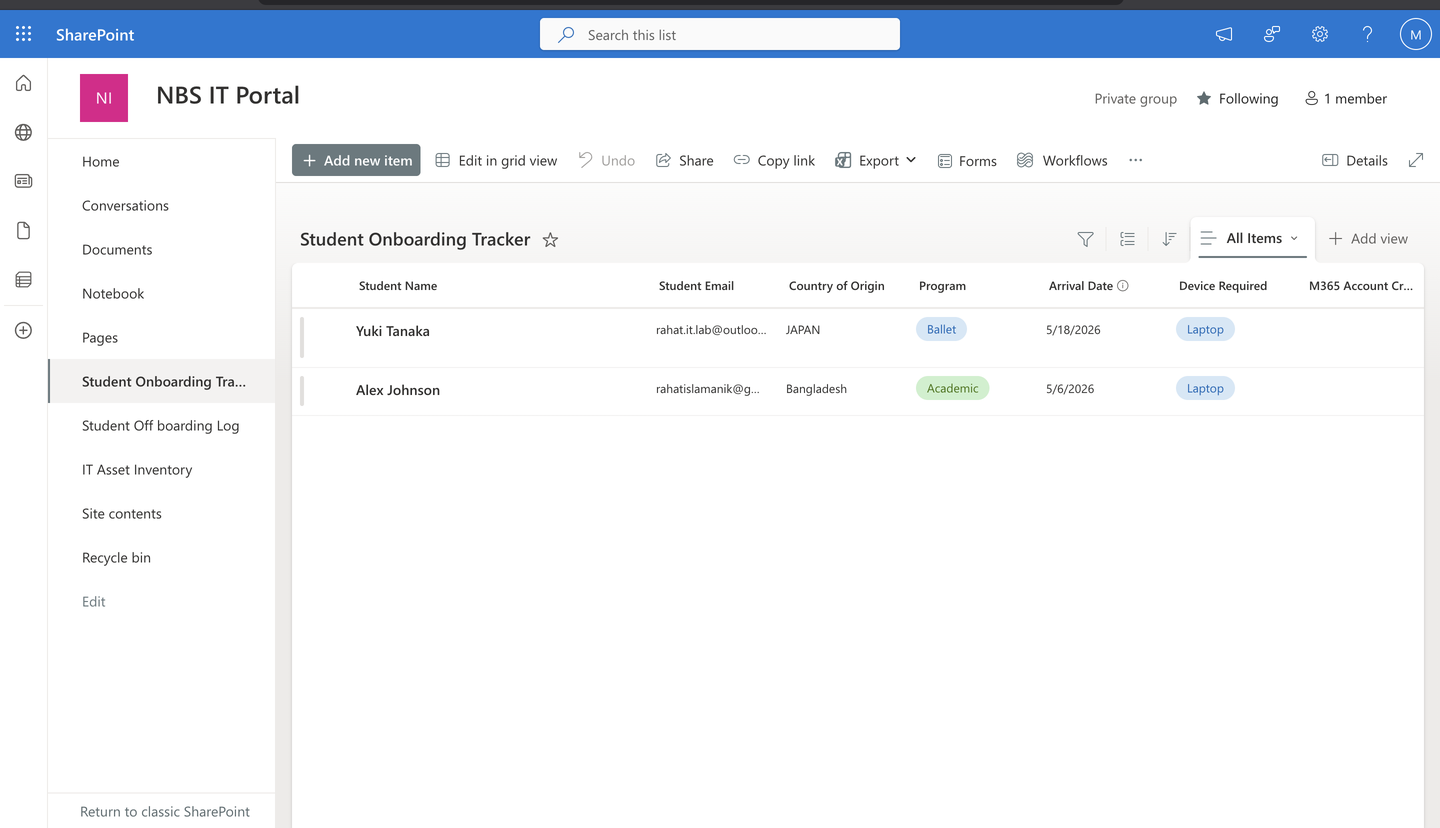
Student Onboarding Tracker with sample international student records
Student Onboarding Tracker — SharePoint list with sample international student workflow data
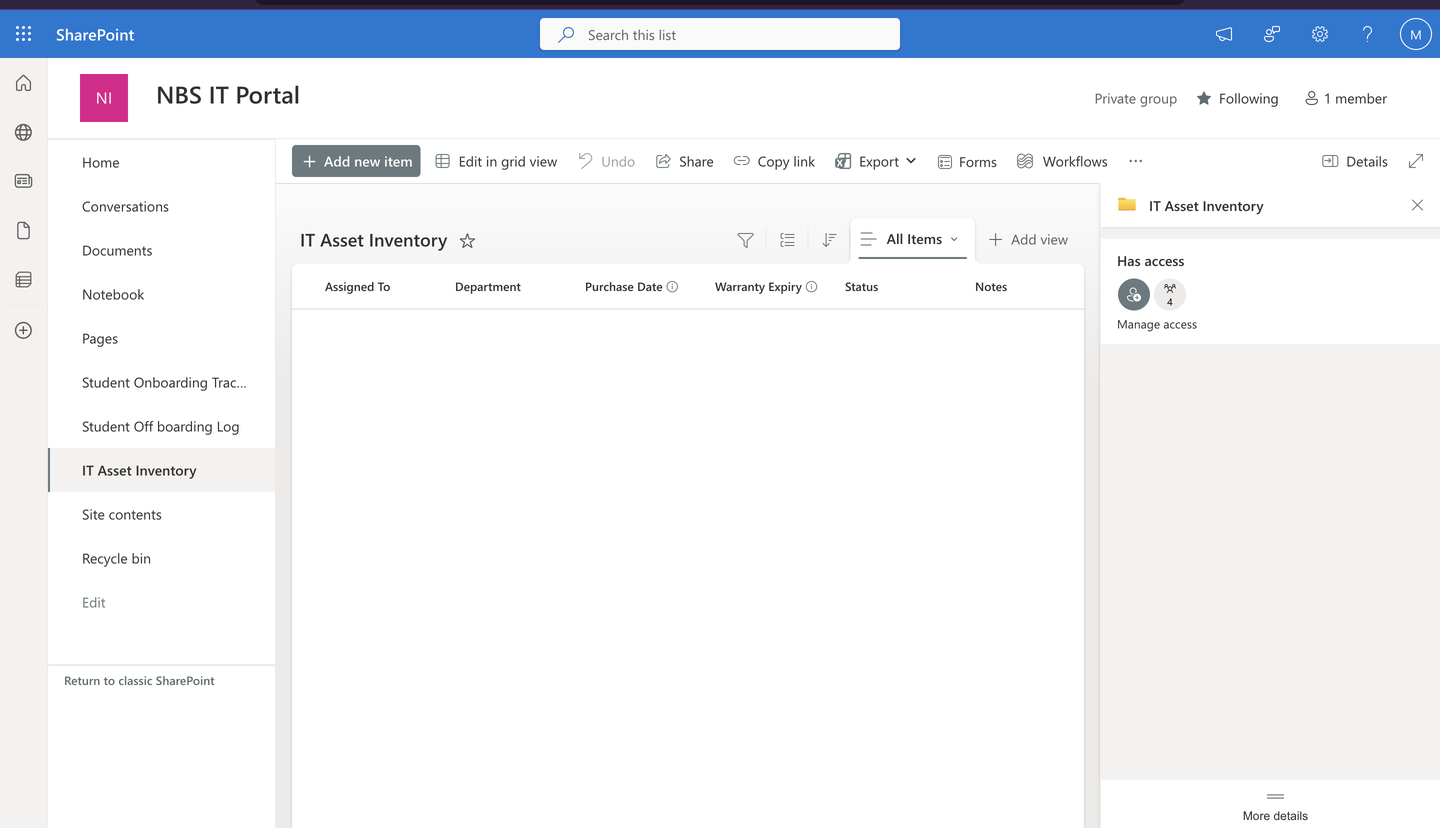
IT Asset Inventory list in SharePoint IT Operations Portal
IT Asset Inventory — device lifecycle tracking across campus hardware. Columns: Asset Tag, Device Type, Assigned To, Warranty Expiry, Status
Phase 2 — Automation

Two flows.
Consistent handoffs, clear records.

Flow 01
Student IT Onboarding
  1. Student or admin submits the International Student IT Onboarding Request via Microsoft Forms
  2. Power Automate cloud flow runs when the onboarding form is submitted
  3. Student record is created in the Student Onboarding Tracker SharePoint list with intake data
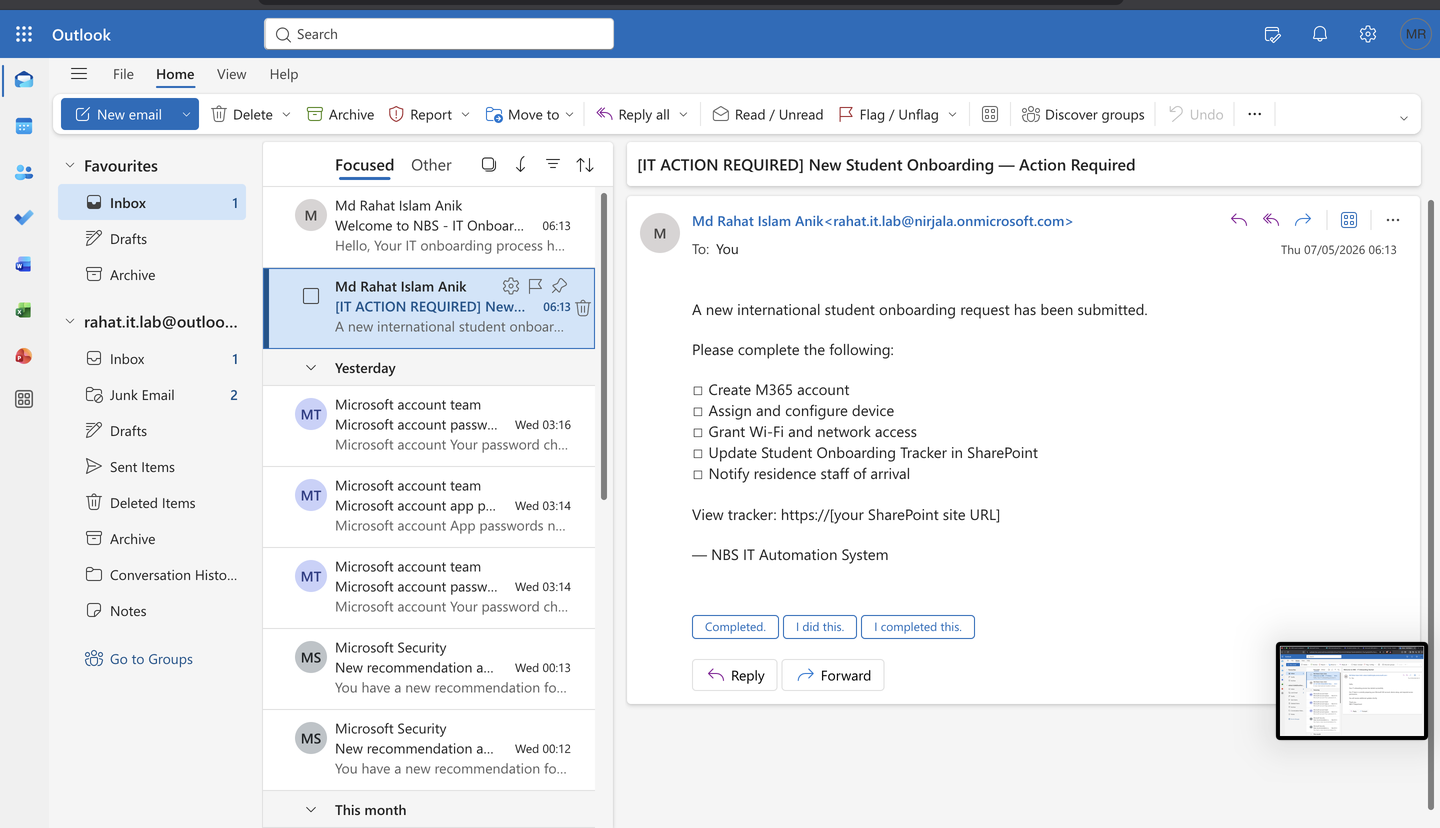
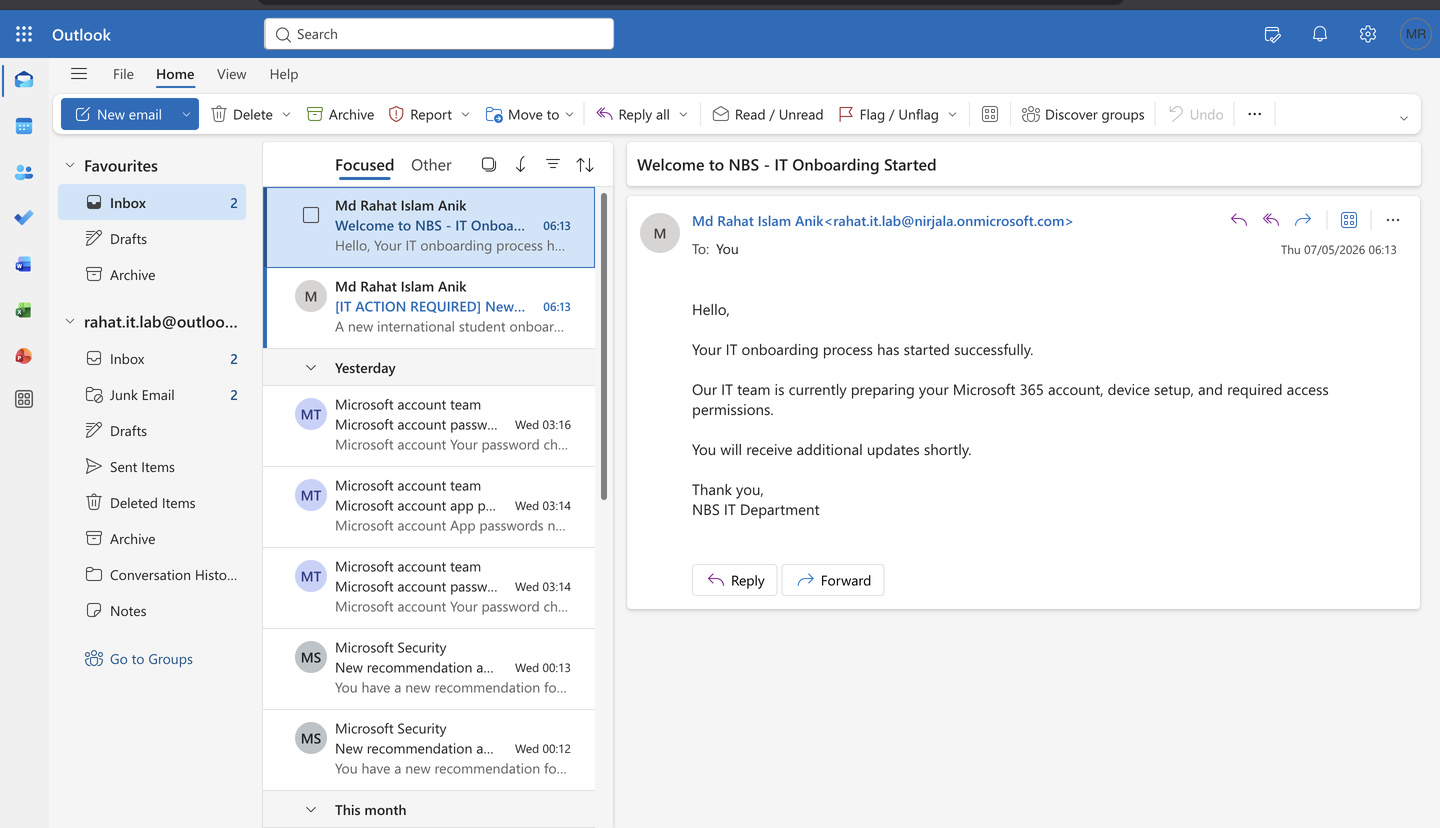
  4. Personalized welcome email is generated for the student confirming their IT setup is underway
  5. IT team receives an action checklist email: Create M365 account · Assign device · Grant network access · Notify residence
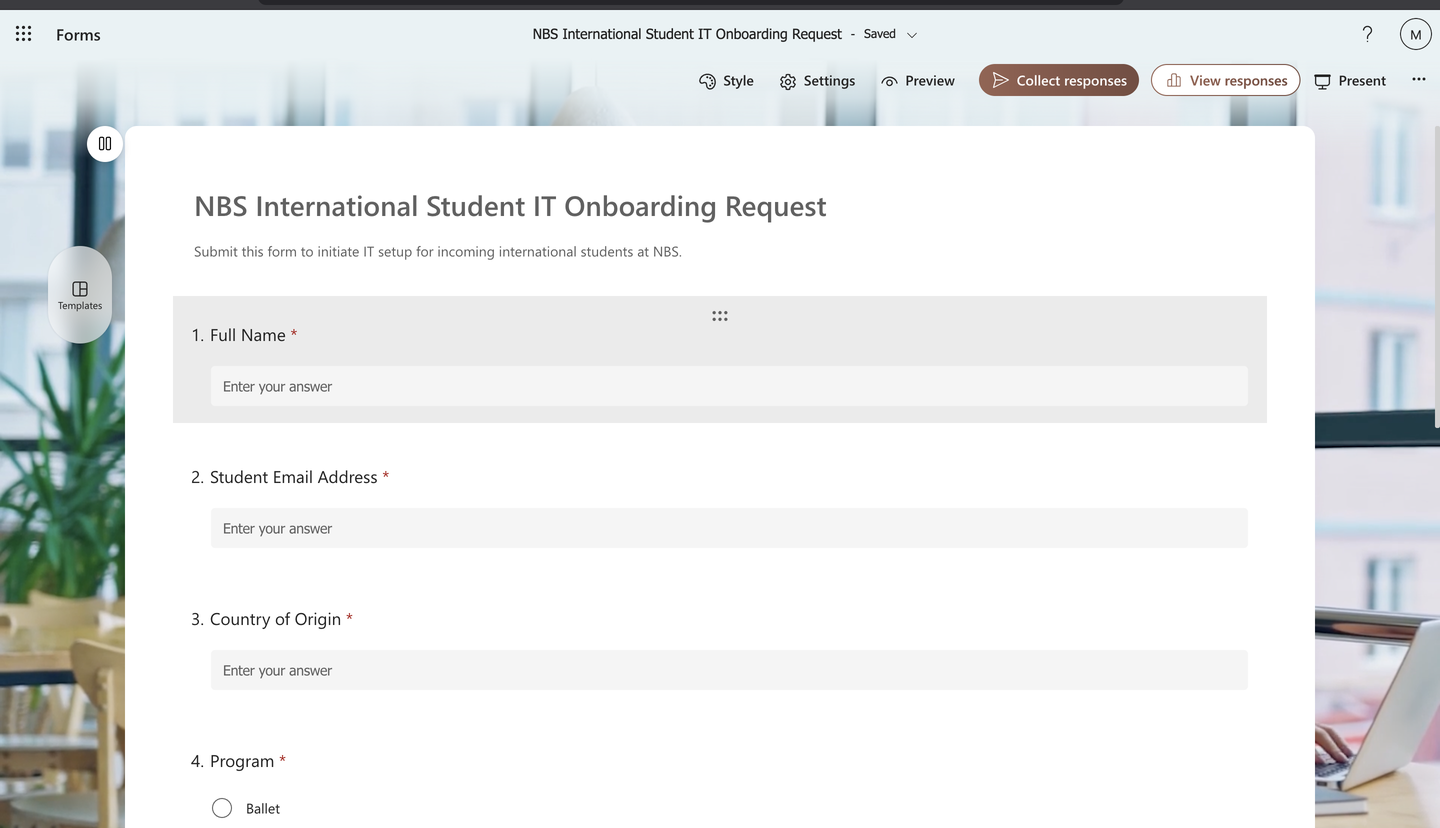
International Student IT Onboarding Request form with 7 fields
International Student IT Onboarding Request — 7 fields, required validation, routes to Power Automate on submission
Flow 02
Student IT Offboarding
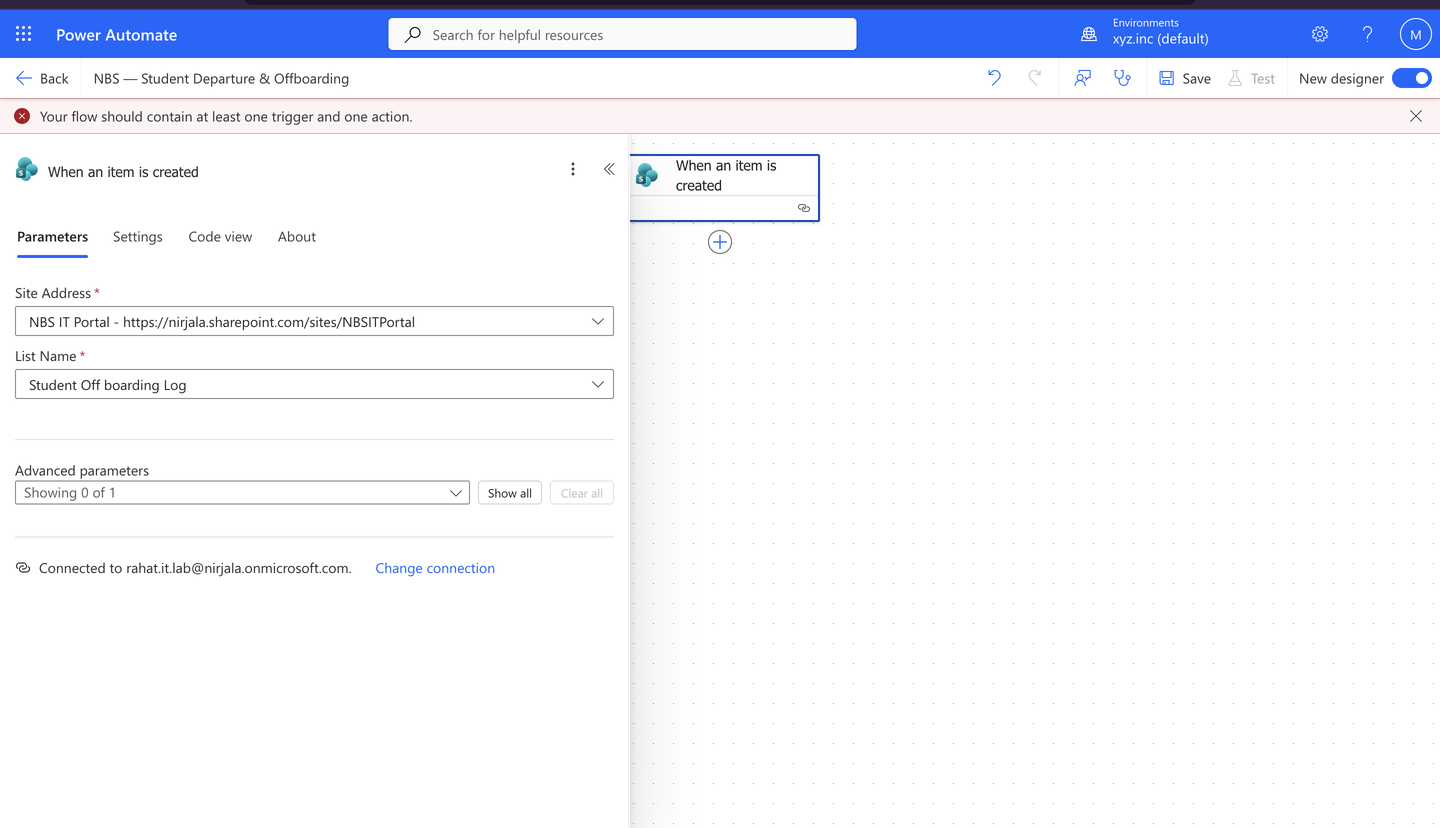
  1. IT team logs departure in the Student Offboarding Log to trigger the offboarding workflow
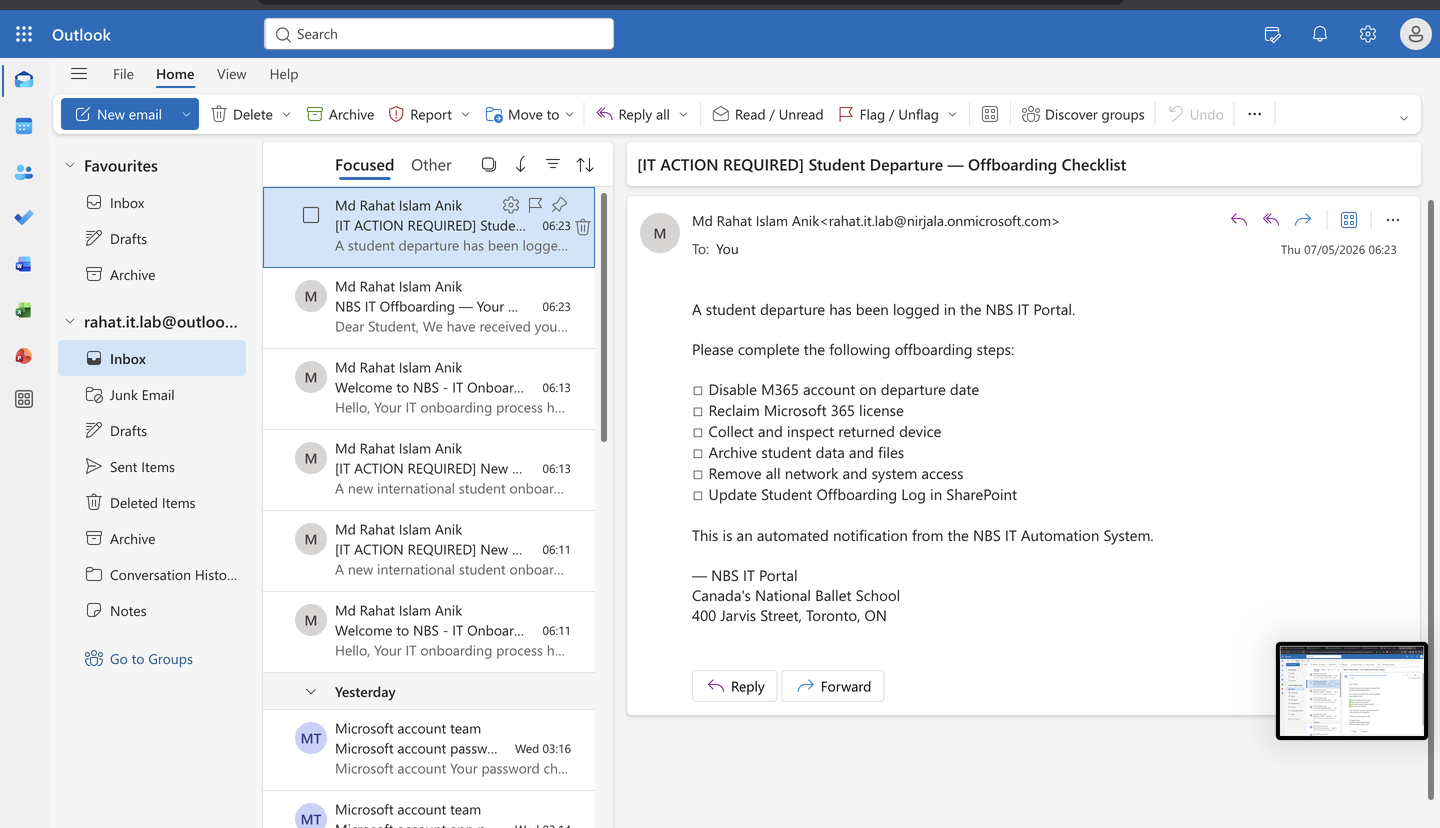
  2. IT team receives a complete offboarding checklist: Disable M365 account · Reclaim license · Collect device · Archive data · Remove all system access
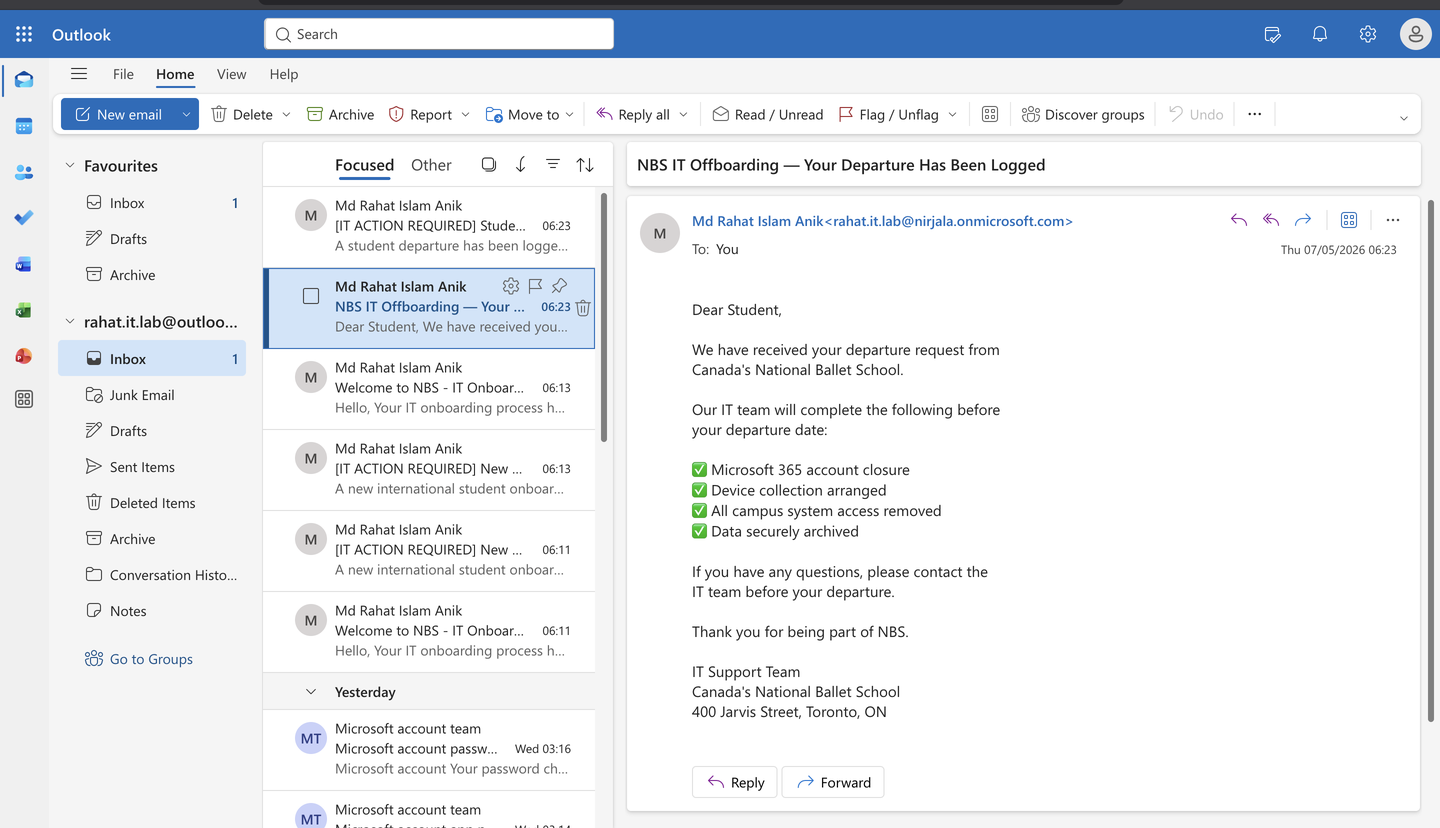
  3. Student receives a professional departure confirmation from the IT department
  4. Offboarding log is updated so lifecycle actions can be reviewed from SharePoint
Student Departure Offboarding Power Automate flow configuration
Student Departure & Offboarding flow · Trigger: SharePoint item created in Student Offboarding Log

The forms are live.
Try them now.

These are the actual Microsoft Forms connected to the Power Automate workflows described in this case study. Submitting either form triggers the intake pipeline — data routing, SharePoint tracking, and email notifications — exactly as designed.

Live · Microsoft Forms

International Student IT Onboarding Request

The intake form that triggers the onboarding automation — account provisioning, device assignment tracking, student welcome email, and IT checklist generation.

Open Onboarding Form ↗
Live · Microsoft Forms

International Student IT Offboarding Request

The departure form that triggers the offboarding workflow — account deactivation tracking, device recovery, access removal, and lifecycle documentation in SharePoint.

Open Offboarding Form ↗

Business Impact

What this actually saves.

Every manual onboarding can take an IT team member approximately 45 minutes end-to-end. Every offboarding, around 30 minutes. With 20–30 international students per semester, the model shows meaningful time savings and fewer missed handoff steps.

45min
Estimated time saved per student onboarding from intake submission to IT alert
~20hr
Recovered per semester for a 25-student cohort — time better spent on infrastructure
1log
Workflow audit trail coverage for lifecycle events tracked in SharePoint
$0
New software cost — built entirely on existing Microsoft 365 infrastructure
2
Power Automate flows built and tested with sample onboarding and offboarding data
3
SharePoint systems configured — tracker, log, and asset inventory in the IT Operations Portal

Built on what you already own.

No new vendors. No new licenses. Every component of Project Arabesque is modeled with Microsoft 365 services that many education organizations already administer.

📋Microsoft Forms
Power Automate
📂SharePoint Online
📧Office 365 Outlook
💬Microsoft Teams
☁️Microsoft 365 Cloud
🔒Entra ID (M365)
📊Low-Code / API Logic

Technical Artifacts

Documentation built
for real administrators.

Every design decision in this project is documented. The artifacts below cover SharePoint schema design, Power Automate flow logic, PowerShell provisioning, and visual lifecycle diagrams — the same depth expected in a production environment.

📂
docs/sharepoint-schema.md
Full column schemas for all 3 SharePoint lists — field types, required columns, indexed columns, and configured views.
docs/flow-logic.md
Step-by-step Power Automate flow documentation — triggers, actions, conditions, dynamic content mapping, and error handling.
🖥️
scripts/New-M365OnboardingUser.ps1
PowerShell script using Microsoft Graph API to create M365 accounts, assign licenses, and add users to security groups.
🗺️
Onboarding & Offboarding Swimlane
Interactive HTML swimlane showing the full student lifecycle — Forms intake through SharePoint audit trail across both flows.

"A ballet dancer shouldn't have to think about the network when she's streaming a rehearsal recording. A choreographer shouldn't have to think about SharePoint when he's pulling up production notes. The IT process should be quiet, predictable, and documented. That's what Project Arabesque is designed to model."

Md Rahat Islam Anik

Microsoft 365 · IT Automation · Support Operations Portfolio